
Observability
What the agent actually did, and where it went wrong.
These pages sit in the Observability section of the console sidebar, alongside the Cost pages. All of them read the same spans, so nothing here needs setting up beyond connecting your agent.
Agents
Observability → Agents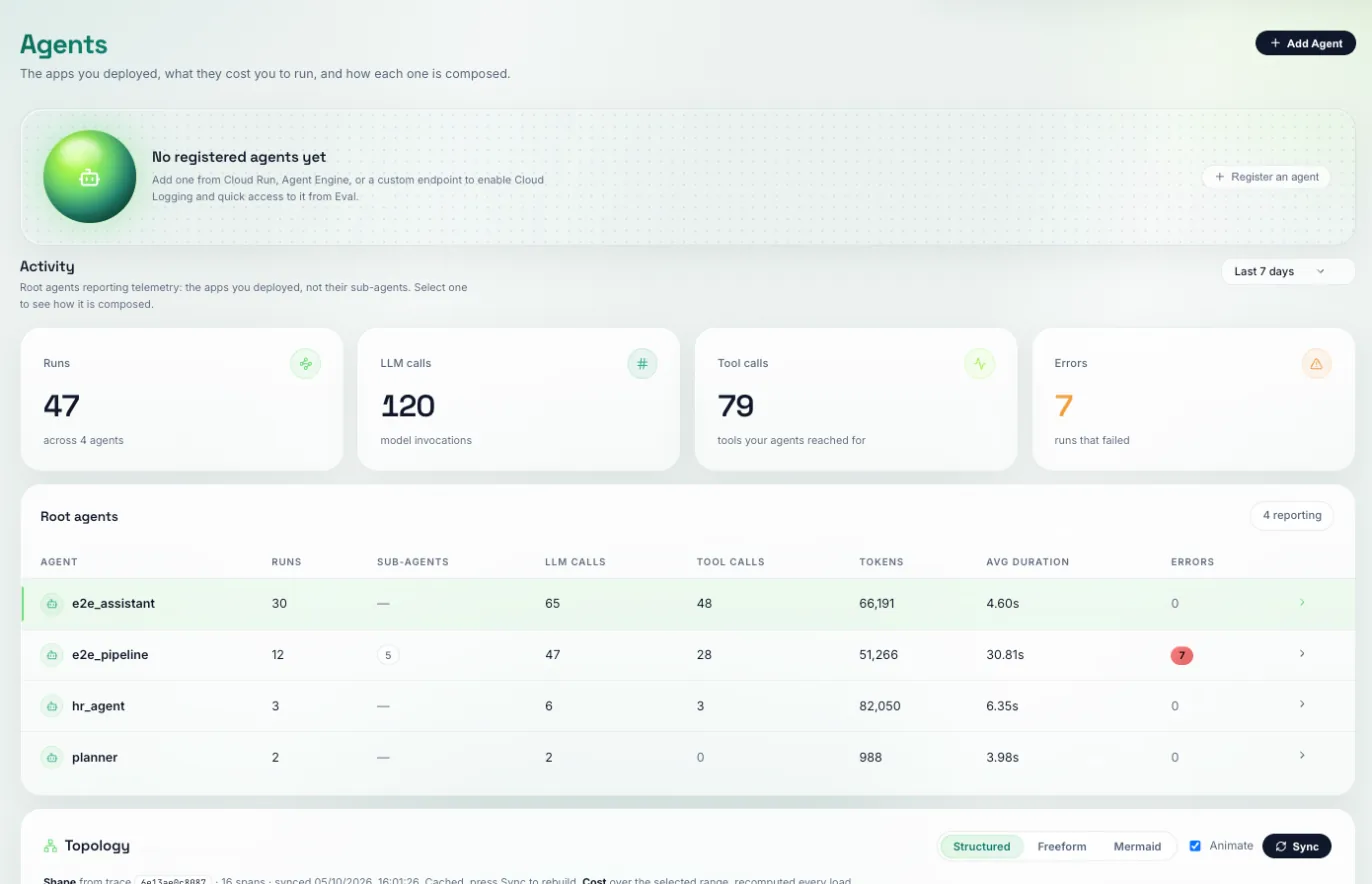
The agents you deployed, one row per root agent: runs, LLM calls, tool calls, tokens, average duration and errors. Select one to see its topology, the graph of its sub-agents and tools with what each one cost.
Sub-agents are counted under the app that runs them, not listed beside it, so this table stays one row per thing you deployed. Click a row and scroll to Topology:
- Structure is drawn from one completed run and cached. Press Sync after you change the agent to redraw it.
- Cost is recomputed for the selected range on every load. Each node shows its spend and share; colour marks where spend is concentrated.
SEQUENTIAL,PARALLELandLOOPblocks are worked out from span timing. A parallel block that actually ran one branch at a time shows a low concurrency figure.- Switch between Structured, Freeform and Mermaid views.
Register an agent (the button on this page; Cloud Run, Agent Engine or a custom endpoint) to read its Cloud Logs on the Logs page and pick it directly in Eval. Telemetry works without registering.
Multi-agent spend is hard to reason about from a flat list. The graph shows which sub-agent or tool is driving cost, which is where a model swap or a prompt fix pays off.
Analytics
Observability → Analytics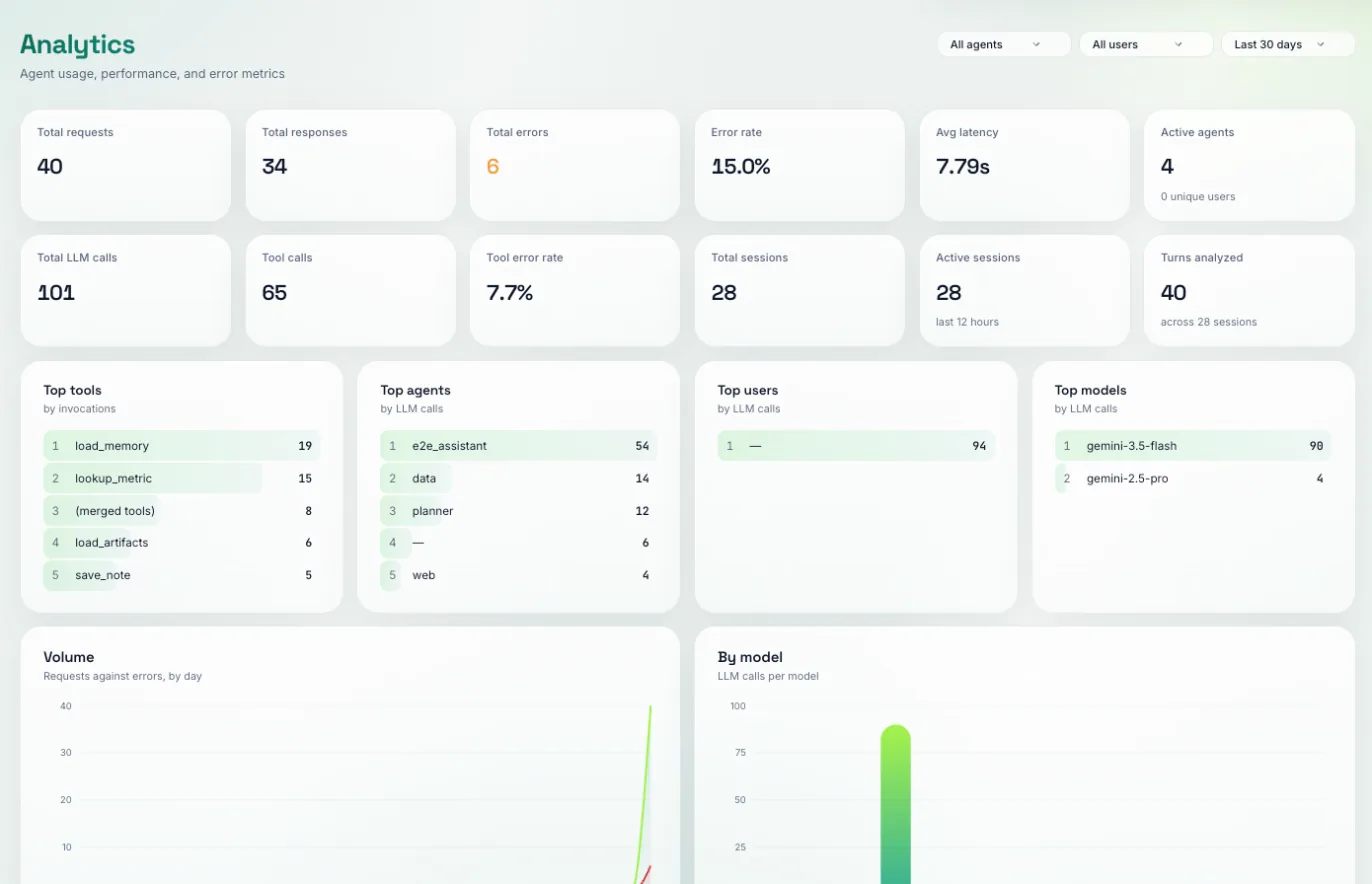
Volume and health on one page: requests, responses, error rate, latency, LLM and tool calls, tool error rate and sessions, with the top tools, agents, users and models, and latency percentiles per agent.
Start here and narrow with the agent, user and range filters. A number that looks wrong usually has its explanation one page away: errors on Logs → Errors, slow runs on Traces, spend on Cost.
It gives you a normal to compare against. An error rate only means something relative to last week, and this is where you notice a change before someone reports it.
Traces
Observability → Traces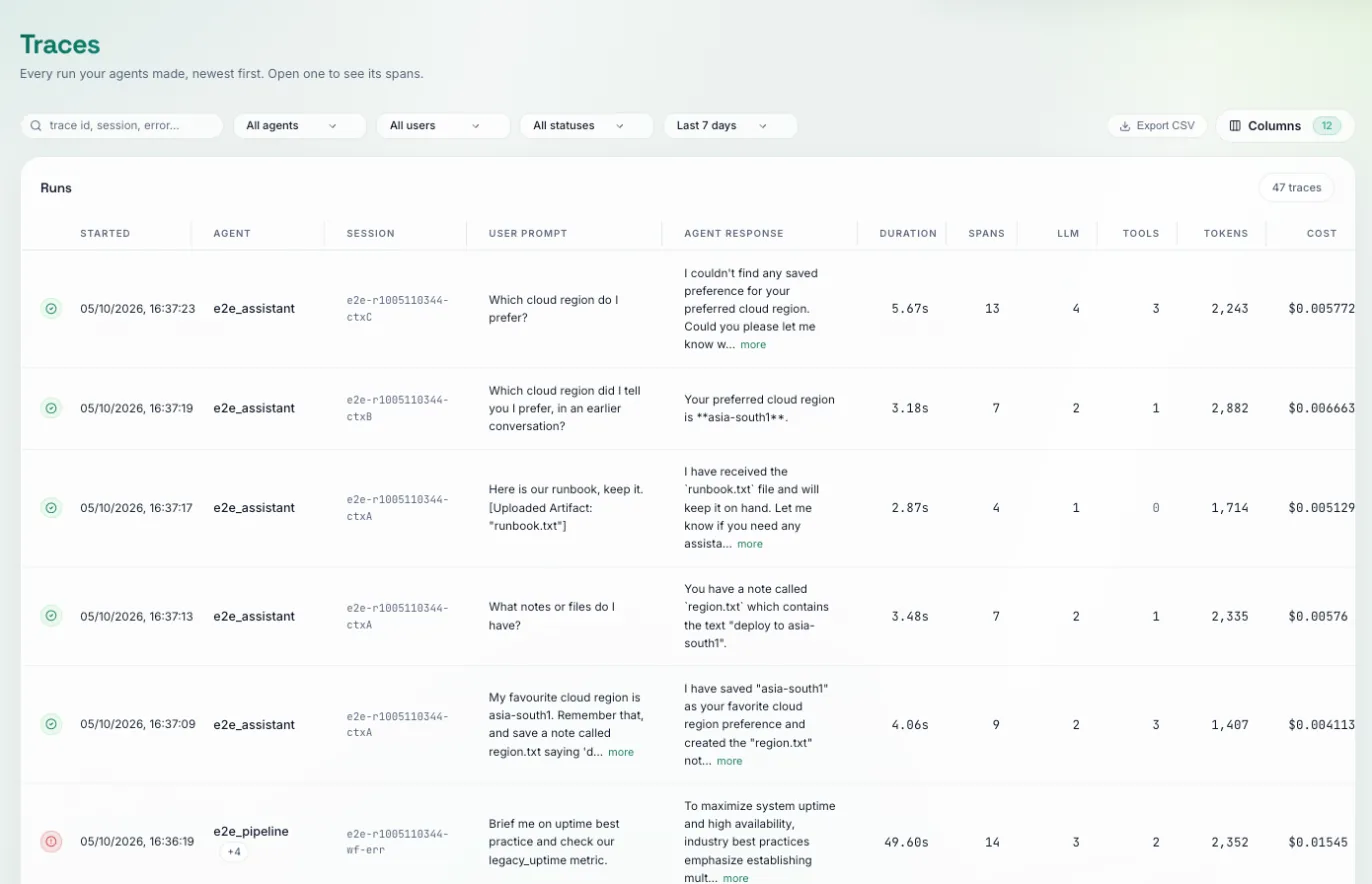
Every run, newest first, with the user prompt, the agent's response, duration, span count, tokens and cost. Open one for the full span tree: every LLM call, tool call and nested agent step, with timings.
Search by trace id, session or error text. Filter by agent, user, status and range, choose which columns to show, and export to CSV. Inside a trace, each span shows its own duration, model and token counts.
Click the session id on a trace to open its user journey: the whole session as one timeline, every turn, tool call and error in the order the user saw them.
Prompt and response text appear only if your agent captures message content. That is opt-in; see Connect your agent.
A slow agent is rarely slow everywhere. The tree shows whether the time went to one model call, a tool waiting on a network hop, or twelve steps that are each fine on their own. Those are three different fixes. The journey answers a question one trace cannot: one bad answer on turn six usually only makes sense once you can see turns one to five.
Logs
Observability → Logs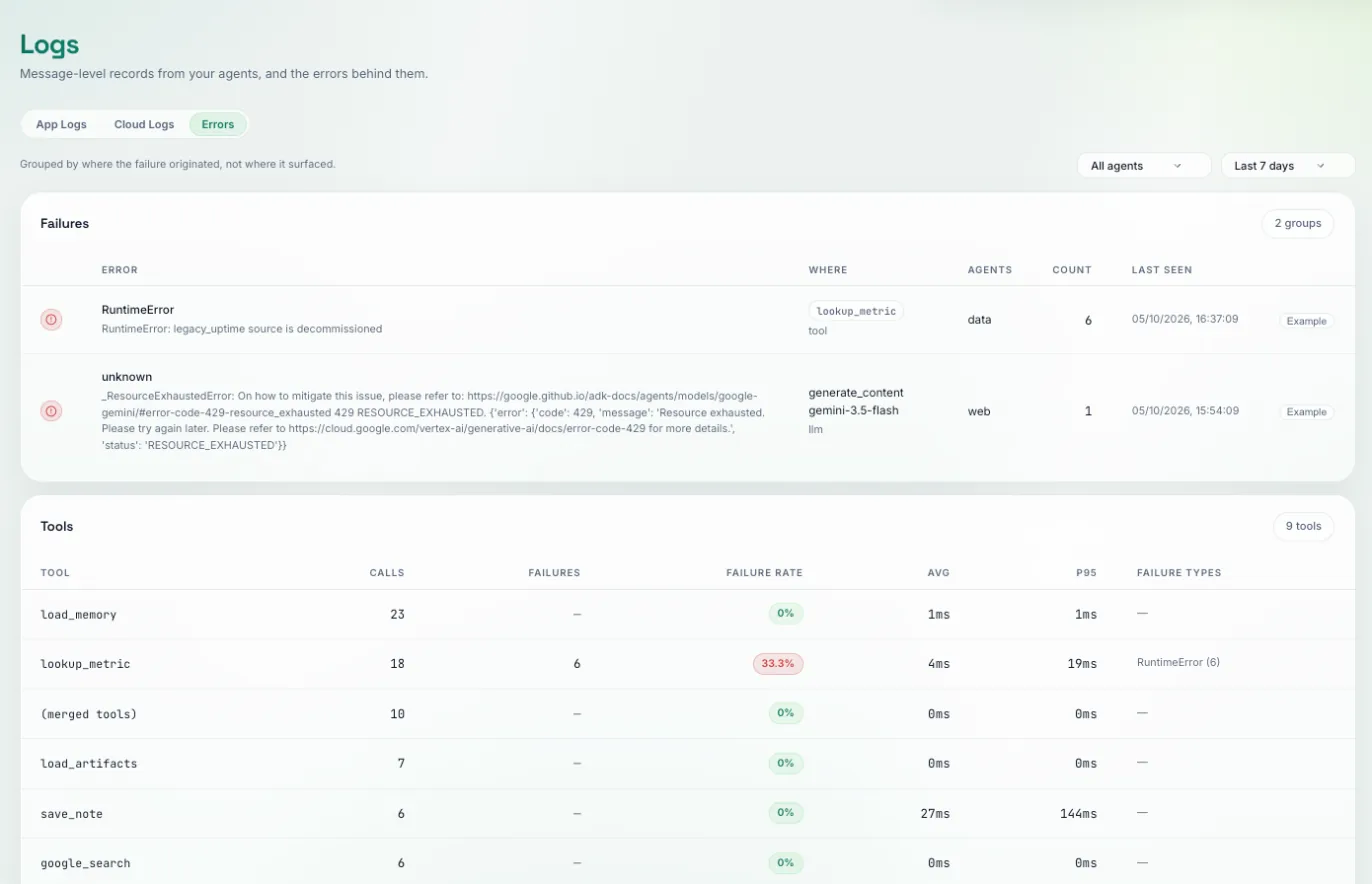
Three tabs over the same agents:
- App Logs: your agent's message-level records, each linked to the trace it happened inside.
- Cloud Logs: the raw stdout and stderr of a registered Cloud Run or Agent Engine agent, read from Cloud Logging with your own Google account. Click Connect Google when asked. You see what your IAM allows, so you need Logs Viewer (
roles/logging.viewer) on the agent's project. Nothing is stored on our side. - Errors: failures grouped by where they started, with counts, plus per-tool call counts, failure rates and latency.
App Logs need one extra environment variable beyond the trace setup:
export OTEL_EXPORTER_OTLP_LOGS_ENDPOINT="https://api.traptureiq.com/v1/logs"
# same X-API-Key header as traces
By default ADK hides message text, and every row reads “content hidden”. To store prompt and response text in logs, also set:
export OTEL_INSTRUMENTATION_GENAI_CAPTURE_MESSAGE_CONTENT=true
On Errors, read the grouped failures first. A bug that fired 400 times is one line with a count, not 400 rows burying everything else. Then check the tools table for a failure rate trending up.
Correlation is the point. With logs in one system and traces in another, you match timestamps by hand during an incident, exactly when you can least afford it. Errors are grouped by where they originated, so one failing tool shows once and not again on every agent above it.
Memory & artifacts
Observability → Memory & artifacts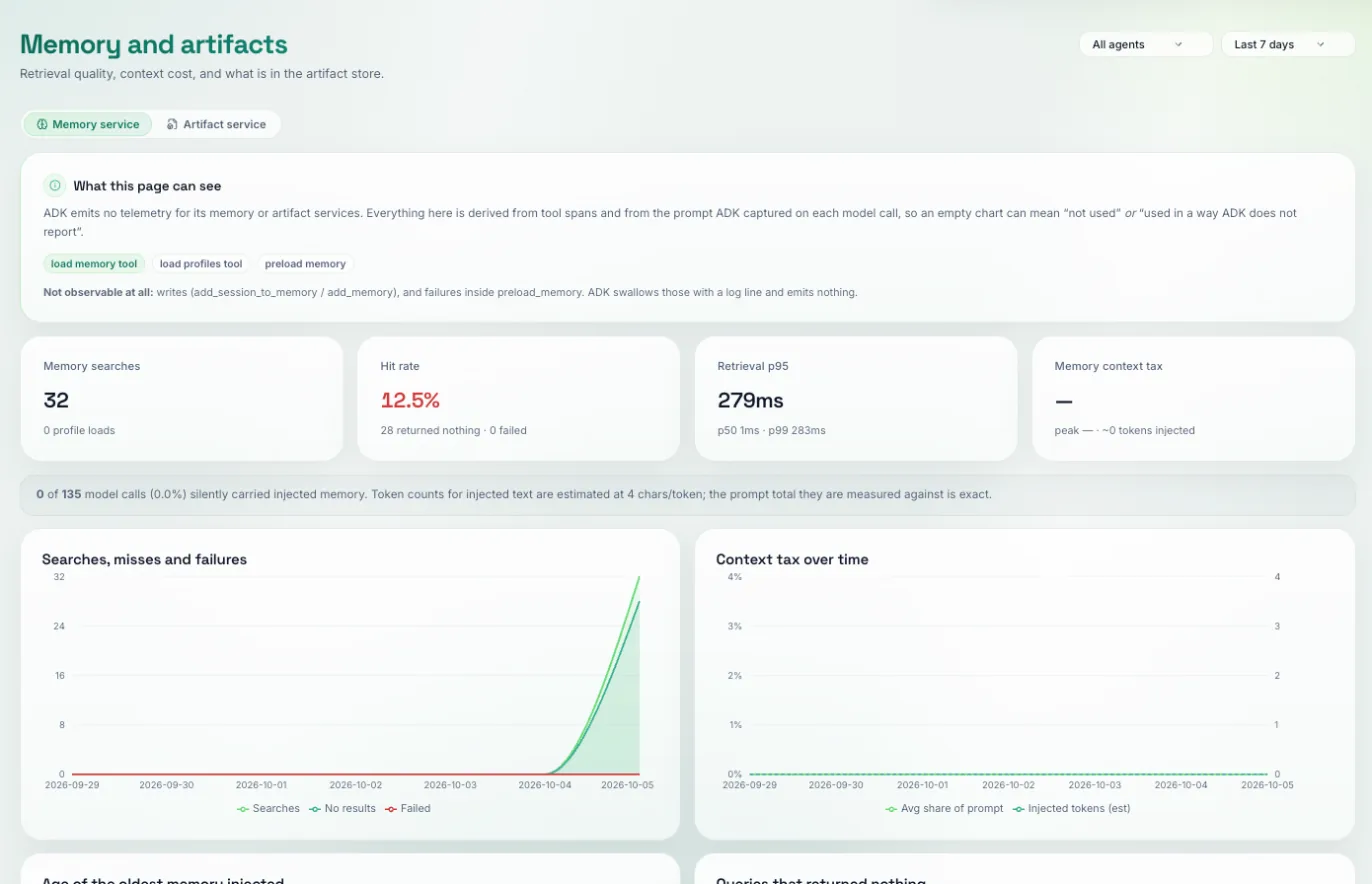
How your agent uses ADK's memory and artifact services: memory searches, hit rate, retrieval latency, the share of each prompt taken up by injected memory, and what is in the artifact store.
Pick an agent and a range. Check the Memory service tab for searches that return nothing and for the context tax trend. On Artifact service, check for phantom references, where the agent names a file that is not in the store.
Memory is where agents quietly get worse and more expensive at once. Searches that miss leave the agent answering without context, and memory that is injected but never used is paid for on every call.
Next: Eval.